You give a disposable e-mail address when an e-mail address is requested, you can then go and check and respond to any e-mails sent to the Disposable E-mail address from their website.

I.T. Tips from fergus.it
28.4.11
Disposable E-mail
Disposable e-mail addresses are a great way to avoid spam and protect your e-mail address on websites, blogs, forums and social media.
7.4.11
Outlook - Making the same change to multiple contacts
Its possible to make the same change to multiple contacts in Outlook without having to open, modify, and save each one. The trick is to use Outlook to group items in the Contacts folder view to organize the contacts, and then drag-and-drop selected contacts to make the change.
You first need to display the items in a table view with the items grouped by the field you need to change. For example, if you need to change the company's address, customize the table view to group the view by the Business Address field.
You don't have to change an entire group, but can instead change individual contacts by using the same method. Rather than drag an entire group, select one or more individual contact items and then drag them to the target group.
You first need to display the items in a table view with the items grouped by the field you need to change. For example, if you need to change the company's address, customize the table view to group the view by the Business Address field.
You don't have to change an entire group, but can instead change individual contacts by using the same method. Rather than drag an entire group, select one or more individual contact items and then drag them to the target group.
14.3.11
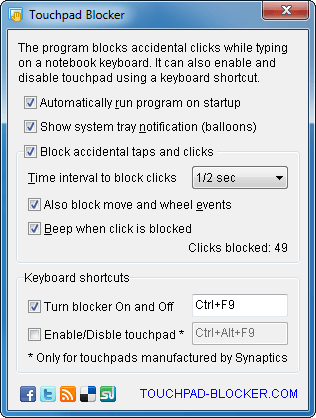
Touchpad Blocker stops accidental use of the touchpad on laptops and netbooks
Touchpad Blocker is a program that prevents the mouse cursor from jumping when typing on a laptop or notebook.
Touchpad Blocker is free and works with any 32 or 64 bit version Windows.
Download Touchpad Blocker

Touchpad Blocker is free and works with any 32 or 64 bit version Windows.
Download Touchpad Blocker
17.2.11
Top 20 shortcuts for taming Windows 7
Here's my top-20 list of must-know shortcuts; you'll never have to move your hands from the keyboard. I've included many keyboard shortcuts you might already be familiar with; skip down the list to see the ones you don't know.
Switch between open windows Alt + Tab
Minimize/restore all but active window Windows key + Home
Minimize all windows Windows key + M
Maximize window Windows key + up-arrow
Minimize/restore window Windows key + down-arrow
Make all windows transparent so you can see the desktop Windows key + spacebar
Dock window to left or right half of screen Windows key + left- or right-arrow
Zoom in/out
(In the default view, you must zoom in before zooming out.) Windows key + plus/minus sign
Lock screen Windows key + L
Open Run dialog Windows key + R
Open Search box Windows key + F
Open Windows Explorer to computer Windows key + E
Expand Folders view in Win Explorer to show where you are Control + Shift + E
Go up a level in Windows Explorer Alt + up-arrow
Choose display mode/switch monitors
(Especially useful for presenters or dual-monitor users) Windows key + P
Launch apps pinned to the Taskbar
(1 is the left-most app; Windows Key+T cycles through all apps.) Windows key + (number 1-9)
Cycle through Gadgets Windows key + G
Rotate a picture clockwise Control + period
Rotate a picture counterclockwise) Control + comma
Switch between open windows Alt + Tab
Minimize/restore all but active window Windows key + Home
Minimize all windows Windows key + M
Maximize window Windows key + up-arrow
Minimize/restore window Windows key + down-arrow
Make all windows transparent so you can see the desktop Windows key + spacebar
Dock window to left or right half of screen Windows key + left- or right-arrow
Zoom in/out
(In the default view, you must zoom in before zooming out.) Windows key + plus/minus sign
Lock screen Windows key + L
Open Run dialog Windows key + R
Open Search box Windows key + F
Open Windows Explorer to computer Windows key + E
Expand Folders view in Win Explorer to show where you are Control + Shift + E
Go up a level in Windows Explorer Alt + up-arrow
Choose display mode/switch monitors
(Especially useful for presenters or dual-monitor users) Windows key + P
Launch apps pinned to the Taskbar
(1 is the left-most app; Windows Key+T cycles through all apps.) Windows key + (number 1-9)
Cycle through Gadgets Windows key + G
Rotate a picture clockwise Control + period
Rotate a picture counterclockwise) Control + comma
14.2.11
iTunes - Tip to clean up missing songs
After consolidating your iTunes library you may find that many of the songs had the little exclamation mark icon that means "this file is not where it was when it was added to the library" because you'd made changes to your music folder for organization purposes. But iTunes offers no easy way to get rid of the files that have those errors.
To get rid of them edit all of the music files (select all in the music tab) in the Comment tag to "I exist." Then I made a custom playlist that found songs that did NOT have "I exist" as their comment. This created a list that contained all the missing files (because you can't change tags on files that don't exist). I selected all and shift+delete and deleted them from the library.
No more missing files.
To get rid of them edit all of the music files (select all in the music tab) in the Comment tag to "I exist." Then I made a custom playlist that found songs that did NOT have "I exist" as their comment. This created a list that contained all the missing files (because you can't change tags on files that don't exist). I selected all and shift+delete and deleted them from the library.
No more missing files.
Subscribe to:
Posts (Atom)