- Click the word in your document that you want to look up.
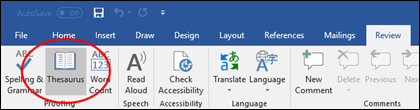
- On the Review tab, click Thesaurus.
- To use one of the words in the list of results or to search for more words, do one of the following:
- To replace your selected word with one of the words from the list, point to it, click the down arrow, then click Insert.
- To copy and paste a word from the list, point to it, click the down arrow, then click Copy. You can then paste the word anywhere that you like.
- To look up additional related words, click a word in the list of results.

I.T. Tips from fergus.it
8.3.20
Look up words in the thesaurus - Word & Outlook
23.2.20
Send notes that will self-destruct after being read.
https://privnote.com
Great for when sharing a password is required
Great for when sharing a password is required
17.2.20
Block distracting websites and apps
https://freedom.to
If you need to focus on your work, break a habit, or simply improve your relationship with technology, Freedom can help. By blocking distracting websites and apps, you’ll be more focused and productive.
If you need to focus on your work, break a habit, or simply improve your relationship with technology, Freedom can help. By blocking distracting websites and apps, you’ll be more focused and productive.
9.2.20
How to Import or Export an Outlook Signature
Exporting Outlook Signature Files
Step 1
Close
Outlook if the program is currently running.
Step 2
Click
the "Start" button, type “%APPDATA%\Microsoft\Signatures” (without
quotes here and throughout) in the search box and press “Enter.” You should see
three files for each of your signatures: an HTML file, a TXT file and an RTF
file.
Step 3
Press
“Ctrl-A” to select all of these files, and then press “Ctrl-C” to copy them to
the clipboard.
Step 4
Click
"Start," select “Computer” and browse to a location where you’d like
to store your exported signature files. You may create a dedicated subfolder
for the files for simplicity's sake. To create a subfolder, right-click in an
empty space, hover your mouse cursor over “New” and click “Folder.”
Step 5
Double-click
the new folder and press “Ctrl-V” to paste the files. If you intend to export
the signature to an Outlook installation on another computer, it’s best to back
up to a flash drive, external hard drive or a network share.
Importing Outlook Signature Files
Step 1
Set
up your email account in the new Outlook installation if you haven’t already
done so. You cannot import your signature until after you've created your
profile.
Step 2
Close
Outlook.
Step 3
Browse
to the folder in which you saved your signature files. Press “Ctrl-A” to select
them and press “Ctrl-C” to copy.
Step 4
Click
"Start," type “%APPDATA%\Microsoft\Signatures” and press “Enter.”
Step 5
Press “Ctrl-V” to
paste the files. The next time you open Outlook, your signature(s) will be
available
26.1.20
Fix Blurry Windows 10 Fonts
Here is a handy utility you can use to correct the problem called XPExplorer – Windows 10 DPI Fix, and it’s free.
Start it up and check the Use Windows 8.1 DPI Scaling option and then choose your scaling level.
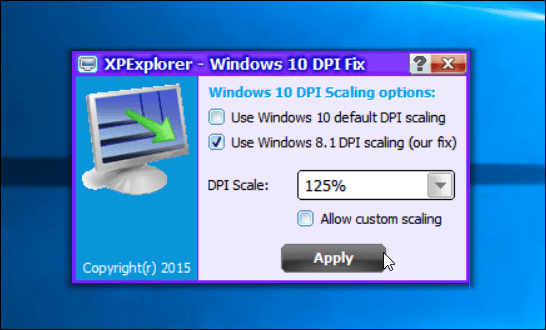
A restart is required to complete the installation. When you get back fonts in the apps you were having issues with, they should no longer be fuzzy, but clean and clear again.
This utility is nice to have because it will work across the board and you won’t need to use the manual method for fixing everything that has fuzzy/blurry text.
Subscribe to:
Posts (Atom)